
How to Create a Toggle Button in Tableau

Updated: Jan 17

What is a Toggle Button?
Toggle buttons are UI controls that let users switch a setting between two states - typically ON/OFF, Show/Hide, Start/Stop or Enable/Disable - with a single tap or click. They provide immediate visual feedback by changing appearance when activated, making them ideal for quick, binary decisions such as turning notifications on, switching themes, or enabling features in apps and dashboards.
Use Case: Switching Between Views (e.g., Revenue & Profit)
In this article, I am going to demonstrate how to create a toggle button to help you switch between views e.g., switch between a Revenue and a Profit view.
Create two Visualizations (Revenue vs. Profit)
Using the Sample – Superstore data, create two visualizations showcasing the Monthly Revenue and Profit as shown below.


Creating a Dashboard
To create a dashboard.
While in tiled mode, add a horizontal or vertical container into the dashboard area.
Drag one of the above visualizations into the container to create the view below.

Next, float another container onto the first one.
Resize it to fit or make it slightly larger than the first one.

While in tiled mode, drag the second viz into the floated container.
Change the background color of the containers to white to create the view below.

(Note, the above view shows the floated visualization which hides the first visualization)
Creating Toggle Button
To add the toggle button,
Select the floating container and…
Choose Add Show/Hide Button

Float the button at your preferred location within the dashboard.
Next, edit the default buttons and replace them with custom buttons or shapes.

In this case, I am going to replace the Item Shown and Item Hidden buttons with custom toggle buttons (switch buttons) that I have downloaded from Flaticon site.
When Item Shown >> show Right switch button
When Item Hidden >> show Left switch button

Executing the above creates the view below.

Adding Text Boxes for Clarity
Lastly, add text boxes at both ends of the toggle button as shown below.
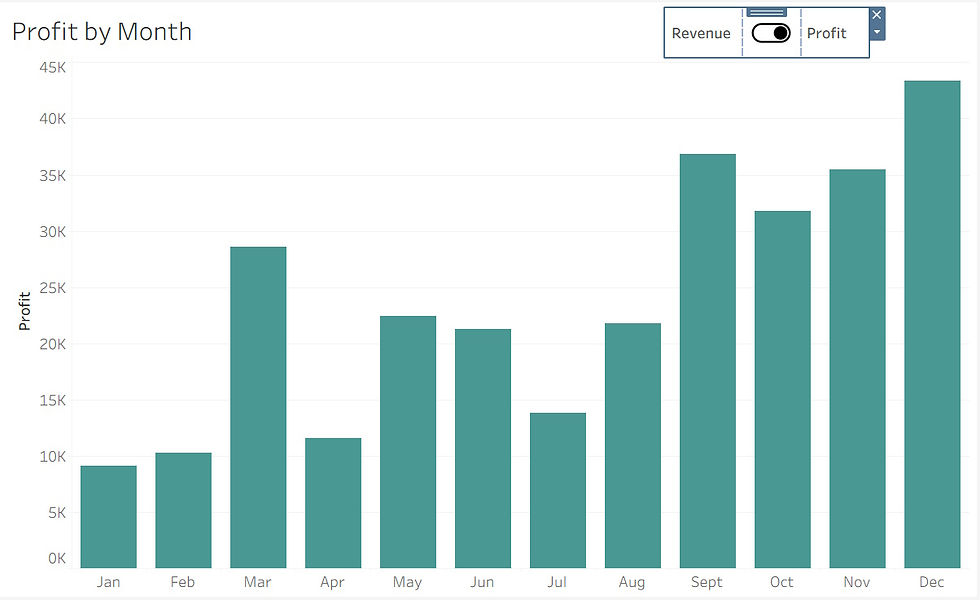
Final Visualization
See the final visualization.

Conclusion
Toggle buttons have become an essential part of modern Tableau dashboards, offering a simple yet powerful way to enhance interactivity and guide users through different analytical perspectives. By giving viewers, the ability to switch views, metrics, or scenarios with a single click, toggle buttons help keep dashboards clean, flexible, and user‑friendly.
As dashboards continue to evolve toward more dynamic, story‑driven experiences, toggle buttons stand out as a practical design element that improves both usability and insight discovery. Incorporating them thoughtfully can elevate the overall experience and make your dashboards feel more intuitive, polished, and engaging.
If you like the work we do and would like to work with us, drop us an email on our contacts page and we’ll reach out!
Thank you for reading!!