
How to Create a Toggle Button in Power BI

Updated: Jan 17

Overview
A toggle button is an interactive UI element that lets users switch between two (or more) views, visuals, or states inside a report. It behaves like an ON/OFF switch - useful when you want to show different insights without cluttering the page.
A toggle button can be used to switch between.
Two different charts (e.g., Table – Pie Chart)
Two metrics (e.g., Revenue – Profit)
Two categories (e.g., Hospital Data – Condition data)
Light versus dark themes
Detailed versus summarized views.
Step-by-Step Guide
In this example, I am going to demonstrate how to create a toggle button to switch between two views.
To do so, I have created two views, namely “Revenue by Product Sub-Category” and “Profit by Product Sub-Category” as shown below.
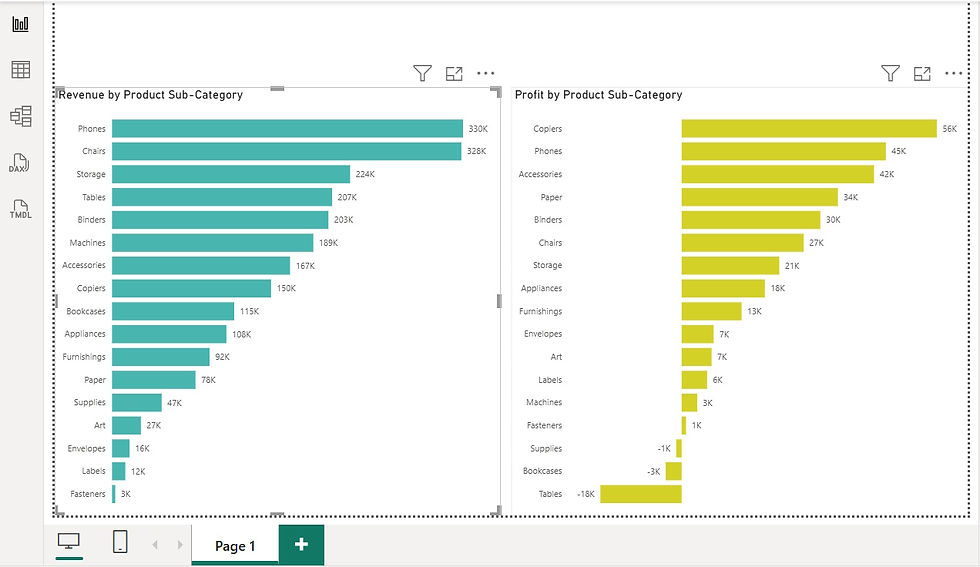
Next, add your custom toggle buttons (as images) as shown below.
Note: These customs button were downloaded from Flaticon.

Setting the Toggle Button – Profit View
To set the toggle button for the Profit view, I am going to utilize bookmarks and the selection pane.
To do so, go to the View pane and select Bookmarks and Selection.

On the selection pane I am going to hide the Revenue icon as well as the Revenue view and add a bookmark - in this case I have renamed my bookmark “Profit”.

Setting the Toggle Button – Revenue View
Repeat the same to create the revenue view by hiding the Profit icon as well as the Profit view. Add a bookmark for the Revenue view as shown below.

(Note you can seamlessly switch between the two views by selecting the saved bookmarks)
Overlapping Toggle Buttons
Next, I am going to place the toggle buttons as well as the views on top of each other so that they can overlap as shown below.

Assigning Actions to Toggle Buttons
To assign actions to the toggle buttons.
I am going to select Revenue button >> under Format image I am going to toggle Action ON and select action type as “Bookmark” – in this case “Profit” bookmark as shown below.

Repeat the same to configure the Profit button as shown below.

(Note, selecting the Revenue button will toggle the Profit view and vice-versa)
Final Visualization
See the final visualization.

Conclusion
Creating a toggle button in Power BI is one of the simplest ways to elevate your report’s user experience without adding extra pages or overwhelming your audience with too many visuals at once. By combining bookmarks, the Selection pane, and a well‑designed button, you can give users the power to switch seamlessly between views, metrics, or entire layouts.
This technique not only keeps your dashboards clean and intuitive - it also opens the door to more dynamic storytelling, allowing you to guide users through insights in a controlled, interactive way. Whether you're building templates, teaching beginners, or designing polished executive dashboards, toggle buttons are a versatile tool worth mastering.
If you like the work we do and would like to work with us, drop us an email on our contacts page and we’ll reach out!
Thank you for reading!!