
Custom Number Formatting in Power BI


Overview
Custom number formatting gives you precise control over how numbers appear across your reports, letting you go far beyond the default currency, percentage, and decimal settings. At its core, it allows you to define formatting strings - using symbols like #, 0, commas for scaling, decimals, and even literal text - to shape how values display in visuals. Power BI supports custom formats at three hierarchical levels: model, visual, and element, with higher levels overriding lower ones. This means you can enforce consistent formatting across your entire data model or tailor specific visuals and data labels when needed. Common use cases include scaling large numbers into thousands or millions, controlling decimal precision, customizing percentages, and defining different formats for positive, negative, and zero values.
Beyond basic readability, custom number formatting is a powerful storytelling tool. It helps you create cleaner KPIs, reduce visual clutter, and align numeric displays with business conventions - such as showing financial negatives in brackets or replacing zeros with dashes. You can even embed symbols or text directly into the format string, making your visuals more intuitive without extra DAX measures. By mastering these formatting patterns, you ensure your dashboards communicate clearly, consistently, and professionally, enhancing both user experience and analytical impact.
Power BI Supports Custom Formatting at Three Levels
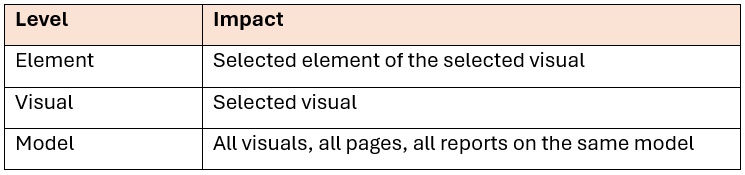
Custom Format Numbers at Model Level
To custom format numbers in the model level, select the field in the Modelling view.
On the Properties Pane, go to Formatting section.
Under Format, open the dropdown menu and select Custom.

Under Custom format you will see a list of commonly used format strings.
Or you can enter your format string in the next box.

Custom Format Numbers at Visual Level
To custom format numbers at visual level, first create your visualization. While your visualization is selected.
Open the format pane and go to the General section of the format pane.
Find the Format data settings and configure the format string there.

Custom Format Numbers at Element Level
To set a format string on a data label, open the visual section of the format pane, set Data Labels >> Value >> Display units to custom and enter the format code

Common Format String Examples

Conclusion
Custom number formatting is more than a cosmetic enhancement - it’s a precision tool that strengthens how your data communicates. By mastering formatting strings, you gain full control over how values appear across visuals, KPIs, and reports, ensuring consistency, clarity, and alignment with business standards. Whether you’re simplifying large numbers, refining financial displays, or tailoring formats for specific audiences, these techniques help transform raw figures into polished, meaningful insights. As your reports grow more sophisticated, thoughtful number formatting becomes an essential part of delivering professional, trustworthy analytics that users can interpret quickly and confidently.
If you like the work we do and would like to work with us, drop us an email on our contacts page and we’ll reach out!
Thank you for reading!!